 Nitidea
Comparison · Online or on your PC
Enhancing photos without uploading them
There are two ways to have a photo cleaned and enlarged by AI: a website, where the photo is processed on someone else’s servers, or an app that does the work on your own computer. Both can give a good result. What changes is where your photos go, what limits you meet and how you pay.
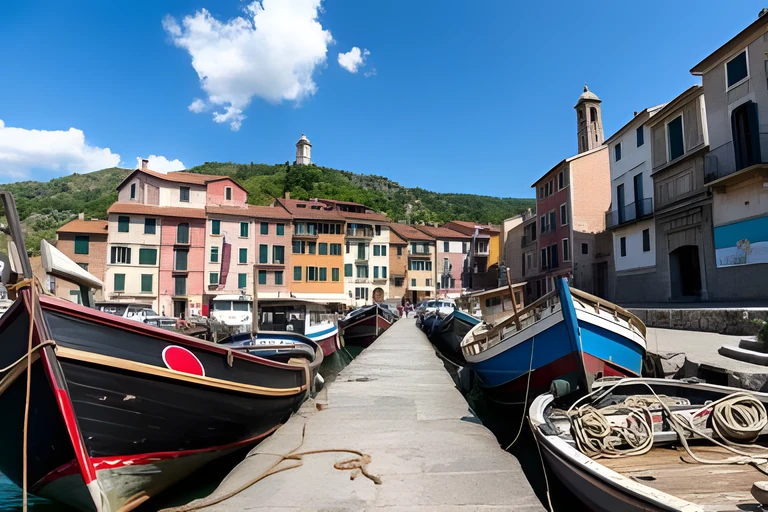 BeforeAfter

Online enhancers
An online enhancer needs nothing installed: you open a page, upload the photo and download the result. For one photo now and then, it is the quickest way to start.
The price of that convenience is the upload. Your photo is copied to the provider’s servers and processed there; how long it is kept, where, and what it may be used for depend on that provider’s terms. For family photos, photos of children or work documents, that is worth reading before you press Upload. Free tiers often add a watermark, cap the size or ask for an account, and larger results are usually paid by credits or a subscription.
An app on your PC
Nitidea is installed once and then works without a connection. The AI runs on your Windows PC, on the graphics card if it has a suitable one (a 12-megapixel photo is enlarged in seconds) and on the processor otherwise, more slowly. Your photos never leave the computer, and the app sends nothing about them.
- Opens JPEG, PNG, HEIC and HEIF from an iPhone, WebP, BMP and TIFF, 16-bit included.
- Keeps the date, camera and colour profile of the original, and never changes or overwrites it.
- One screen: choose Sharper, Bigger or Old photo, and the saved photo opens before and after; Change and redo makes it again.
- The free version has no watermark and no time limit; Pro works on whole folders at once.
Side by side
A general comparison: online services differ from one another, so check the terms of the one you are considering.
Where the photo is processed
Online enhancer: On the provider’s servers
Nitidea (on your PC): On your PC, even offline
Your photos leave your computer
Online enhancer: Yes, they are uploaded
Nitidea (on your PC): No
Account
Online enhancer: Often required
Nitidea (on your PC): None
Watermark on free results
Online enhancer: Common
Nitidea (on your PC): None, in the free version too
Many photos at once
Online enhancer: Varies, often paid
Nitidea (on your PC): Whole folders, with Pro
How you pay
Online enhancer: Typically credits or a subscription
Nitidea (on your PC): Free version, or Pro once
What you need
Online enhancer: A browser and a connection
Nitidea (on your PC): Windows 10 or 11, ideally a graphics card
An online enhancer suits a single photo you don’t mind sharing, on any computer. An app on your PC suits private photos, many photos, or working without an internet connection.
Questions
Does Nitidea need an internet connection?
Not to work on your photos. It connects only when you enter a license key, deactivate a PC or click Check for updates; never on its own.
Is a PC app slower than a website?
With a recent graphics card a photo takes seconds, and there is no upload or download to wait for. On the processor it takes minutes, and Nitidea picks Fast quality for you.
What does the free version do?
Noise removal and 2× enlargement, one photo at a time, with results up to 8 megapixels, or the original’s size if larger, no watermark and no time limit.
The step-by-step guide: enlarging, noise, chat photos, prints, old photos →
Keep your photos on your PC
Download Nitidea and try it on your own photos: no account, no upload, no watermark.
Free version with no watermark and no time limit. Pro: 19 € + VAT once, 12 months of updates, on 2 PCs.
More use cases
AI enlargement vs resizing
Why a photo stretched in an image editor goes soft, and what AI enlargement does differently.
Without a subscription
Subscriptions, credits or a one-time license: what each costs you over time.
Old digital camera photos
Small, grainy photos from early digital cameras and phones, made clean and bigger.
Digitising a photo album
Scan, repair, archive and reprint a family album, without sending it anywhere.