 Nitidea
Guide
How to improve a photo: enlarge it, remove the noise, make it sharp
A small, grainy or blurry photo can often be saved. This guide shows how, case by case, with Nitidea: a Windows app that does the work with artificial intelligence on your own PC, without uploading anything. The free version is enough for most of what follows.
The three steps, whatever the photo
- 1Drop your photos: drag them, or whole folders, into the window. iPhone HEIC photos work too.
- 2Choose what you want, on the right: Sharper, Bigger or Old photo, then press Enhance. The button says how long it will take.
- 3Look at the result: it is saved as a new file in Pictures › Nitidea, and shown before and after at 100%. Not convinced? Change and redo makes it again, and the new version replaces it. The original is never touched.
Enlarge a photo without losing quality
Enlarging a photo in an ordinary image editor stretches the pixels it already has: the picture gets bigger but soft and blurry. Nitidea uses an AI model trained to rebuild the detail an enlargement needs - edges, textures, lettering - so the bigger photo looks sharp instead of stretched.
Choose Bigger, then 2 times (twice the width and height) or 4 times (for small or old pictures). Noise and JPEG blocks are cleaned along the way, so there is no need to remove them first.
How it enlarges is in Settings, under When enlarging. Natural, the one it starts with, removes the noise and enlarges without inventing detail: true to the photo, best for faces and old photos. Reconstructed adds sharp detail, best for landscapes and buildings. Try both: Change and redo makes the photo again in a moment.
- The free version enlarges up to 2 times and saves results up to 8 megapixels, or the original’s size if larger; Pro goes up to 4 times with no size limit.
- Quality, in Settings: Fast suits computers without a graphics card; Standard is finer; Maximum (Pro) is a little better and much slower.
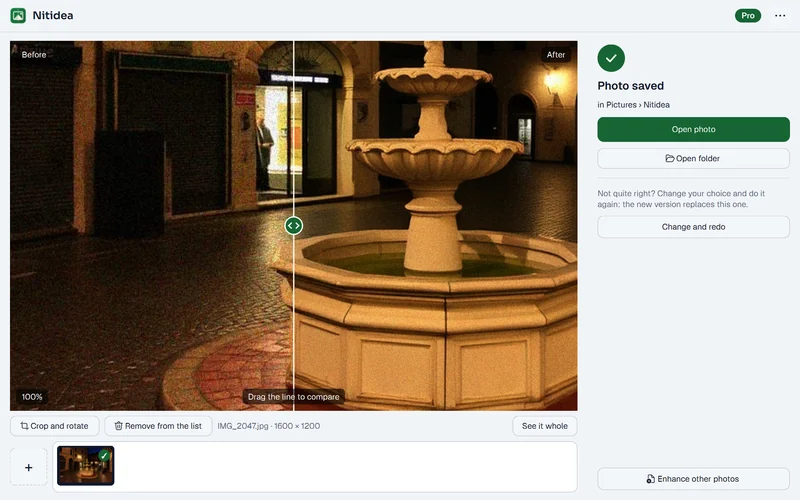
Remove the noise (grain) from a photo taken in low light
Photos taken at night, indoors or with a phone in poor light are covered in grain: coloured specks that hide the detail. Choose Sharper, then It’s grainy: the photo keeps its size and the grain goes, while edges and details stay.
The cleaning starts at 70%. Cleaning strength, in Settings, changes it: lower keeps a more natural texture, higher gives a smoother photo. The result opens at 100%, before and after, so you can judge it, and Change and redo tries another strength.
- Removing noise without enlarging is part of the free version, with no watermark.
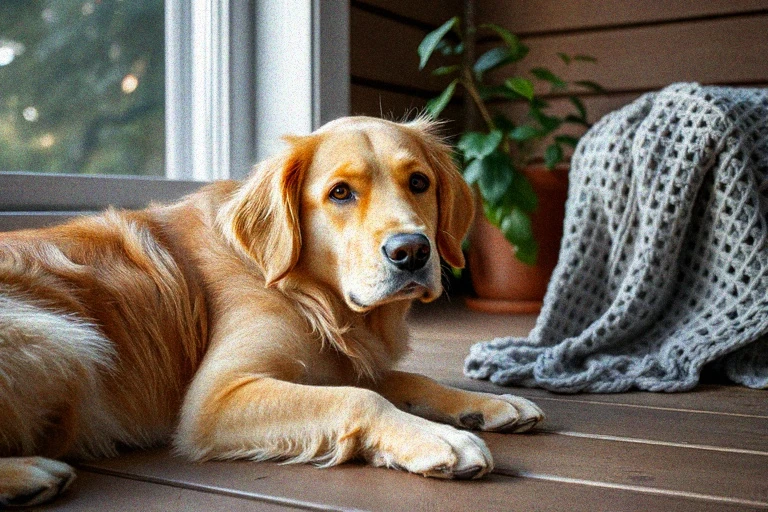
Make a blurry photo received on WhatsApp sharper
Photos sent through WhatsApp and other chats are compressed: they arrive smaller, with blocks and a general blur. Choose Sharper, then Soft or from a chat: it brings back the edges, clears the blocks of compressed photos and keeps the size. It uses the enlarging AI, so it takes a little longer.
If the photo is also small, Bigger, 2 times, cleans the compression along the way and doubles the size in one go.
- A photo that was out of focus when it was taken cannot be made perfectly sharp: the AI improves it, it cannot invent what the camera never captured.
Enlarge a photo for printing
A print looks sharp at about 300 dots per inch (dpi): a 20 × 30 cm print needs a photo of about 2400 × 3500 pixels. A phone photo, or one downloaded from the web, is often smaller.
In Nitidea choose Bigger, then To print, and the size: 10 × 15, 13 × 18, 15 × 20, 20 × 30 cm, A4, A3, or a custom size in centimetres. Each photo is enlarged just enough to print sharp at 300 dpi, and the dpi is written in the file, so the print shop reads the right size.
- The free version enlarges up to 2 times and 8 megapixels (or the original’s size, if larger), enough for the smaller prints; for the large ones Nitidea says when Pro (4 times) is needed to reach 300 dpi.
- For a screen rather than paper, For screens has Instagram, a story, Full HD, 4K or a size in pixels of your own.
Restore an old photo: scratches, dust and colour
Old prints come back from the drawer with scratches, cracks, dust and faded colour, or none at all. Scan the print, or photograph it flat in even light, and add it to Nitidea. Choose Old photo, with Remove scratches and dust: Nitidea finds the scratches, cracks and specks and fills them in from what is around them, and leaves the rest of the photo as it was.
Add colour colours a black-and-white or faded photo; a faded colour print gets its colours made anew rather than just brightened. The colours are a likely guess by the AI, not the real ones: keep that in mind for clothes, cars and walls whose colour you remember.
The restoration is done first, then the enlargement: Enlarge too makes the restored photo 2 times bigger in the same go. For a print of a given size, add the restored photo again and choose Bigger, To print, and the paper.
- The detector can take hair, a face or busy grass for damage. Look at the result at 100%; if you prefer, Change and redo without Remove scratches and dust.
- Restoring old photos is part of Pro. It can be tried free for 14 days; during the trial, restored results carry a watermark.
iPhone photos and the other formats
Nitidea opens JPEG, PNG, HEIC and HEIF (the iPhone's photos), WebP, BMP and TIFF, including 16-bit TIFF. It saves as the original was, or as JPEG, PNG or, with Pro, 16-bit TIFF (Format, in Settings). Date, camera and colour profile go from the original to the result.
What the AI can and cannot do
To enlarge, clean or restore a photo the AI rebuilds detail the original does not contain, and the colours it gives an old photo are a guess: the result is a plausible picture, not a record of what was in front of the camera. That is what makes it look sharp, and it is also why a result should not be used as evidence or to identify someone. Keep the original: Nitidea never changes it.
Everything happens on your PC. Your photos are never uploaded, and no internet connection is needed to work on them.
Try it on your own photos
Nitidea is free to download and to use, with no watermark. Pro adds 4 times, the Maximum quality, old photo restoration, many photos at once and crop and rotate, and can be tried free for 14 days.