 Nitidea
Use case · Family albums
Digitising a family photo album
A family album is worth having in digital form: safe from a flood or a move, easy to share with everyone, ready to print again. Scanning is the slow part; the repairs need not be. Here is a way to do the whole album with Nitidea, without any of it leaving your home.
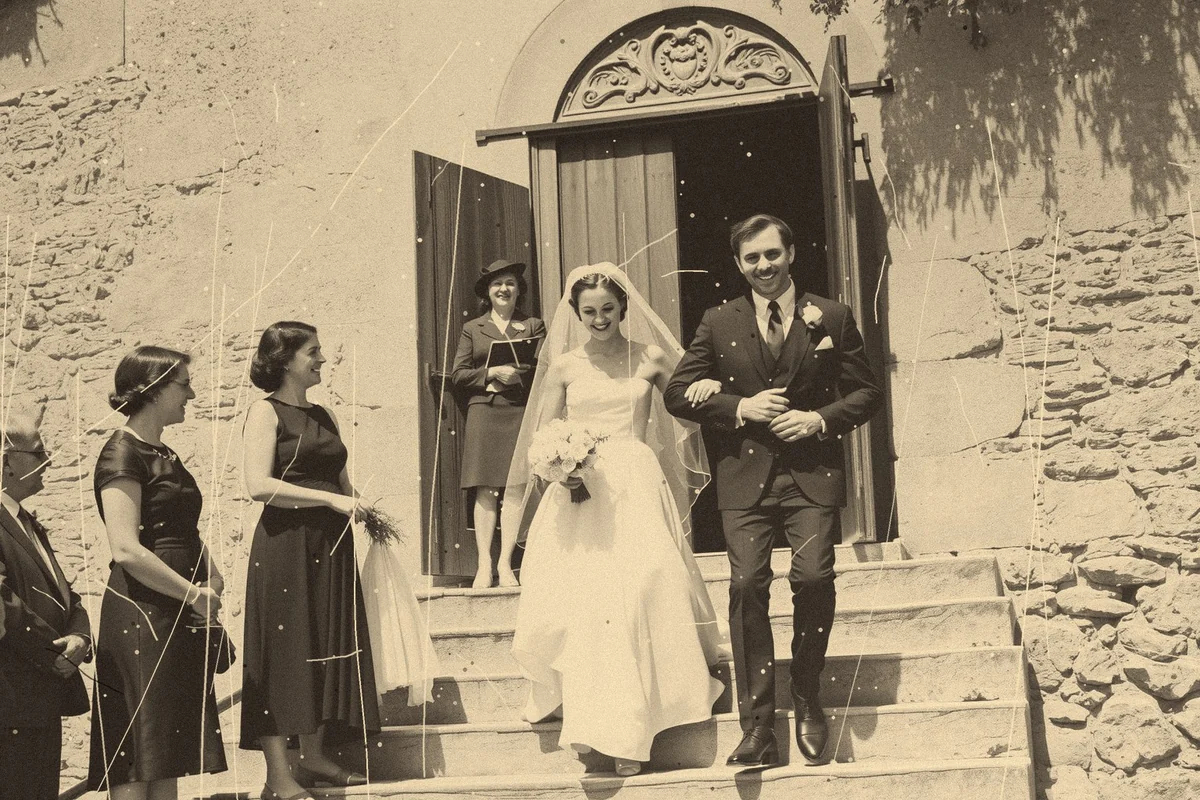
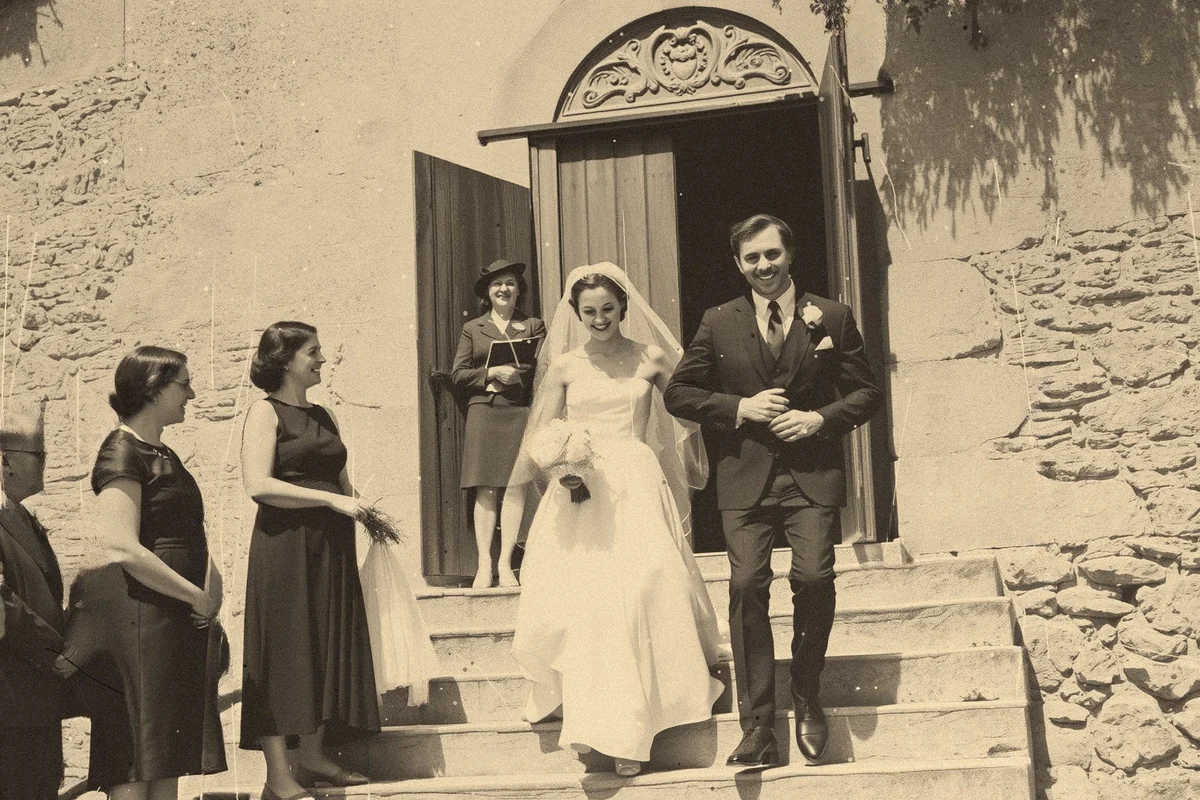 BeforeAfter
1. Scan the prints
A flatbed scanner at 600 dpi gives a small print enough pixels for a larger new one. No scanner? Photograph each print flat, in even light, without flash and without reflections. Clean the glass now and then: dust on it ends up on every scan. Name the files or folders by year or event as you go; it saves hours later.
2. Repair them
Add the scans to Nitidea and choose Old photo, with Remove scratches and dust: Nitidea finds the scratches, cracks and specks and fills them in from what is around them. Look at the result at 100%: the detector can take hair or a face for damage, and Change and redo makes it again without it.
Add colour colours a black-and-white or faded print. The colours are a likely guess by the AI, not the real ones: for an archive, keep the uncoloured version too.
3. Do the whole album at once
With Pro, add a whole folder of scans, keep them all ticked and enhance them in one go, while you do something else. With a recent graphics card a photo takes seconds; on the processor it takes longer, so an album is a job for an evening.
4. Keep, share and print
- For the archive: save as 16-bit TIFF (Pro) or PNG, and keep the original scans: Nitidea never changes them.
- To share: JPEG, at the size the photo already has, or Bigger, For screens, at Full HD or 4K.
- To print: Bigger, To print, and the paper size, from 10 × 15 cm to A3; the photo is enlarged just enough to print sharp at 300 dpi.
- Nothing is uploaded at any step: the album stays on your PC.
Questions
At what resolution should I scan?
600 dpi suits most prints and lets you print them larger later. Very small prints can be scanned at 1200 dpi; Nitidea can enlarge further afterwards.
Which version do I need?
Restoring old photos and working on many photos at once are part of Pro (19 € once). You can try both free for 14 days; during the trial, restored results carry a small watermark.
What does it need from my PC?
Windows 10 or 11, 64-bit. Colouring old photos needs 16 GB of memory; a graphics card with DirectX 12 makes it much faster.
The step-by-step guide: enlarging, noise, chat photos, prints, old photos →
Bring the whole album back
Ask for a 14-day trial key and restore a few prints of your own: every Pro feature, no payment details.
Free version with no watermark and no time limit. Pro: 19 € + VAT once, 12 months of updates, on 2 PCs.
More use cases
Enhance photos offline
Online photo enhancers or an app on your PC: where your photos go, limits and costs.
AI enlargement vs resizing
Why a photo stretched in an image editor goes soft, and what AI enlargement does differently.
Without a subscription
Subscriptions, credits or a one-time license: what each costs you over time.
Old digital camera photos
Small, grainy photos from early digital cameras and phones, made clean and bigger.